Managing Departments (Service Groups)
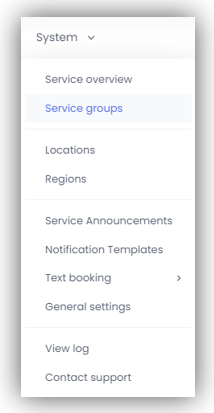
Within mCB, a Service group can be considered as a Healthcare Department. To manage your Service groups, select
System > Service groups
in the navigation bar.
What is a Service Group?
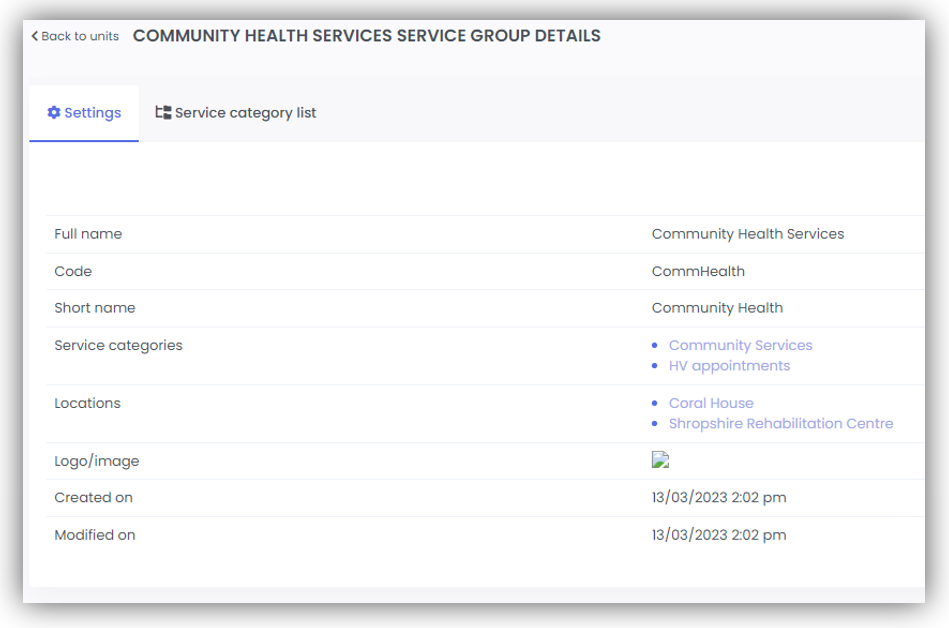
The Service group defines all the Services and at which Locations those Services are offered.
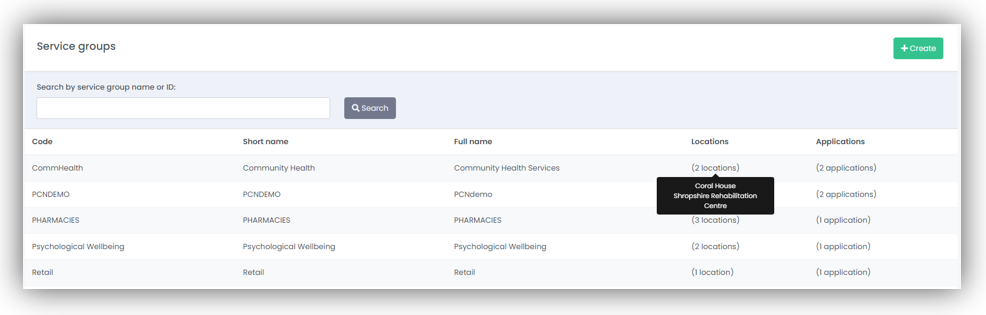
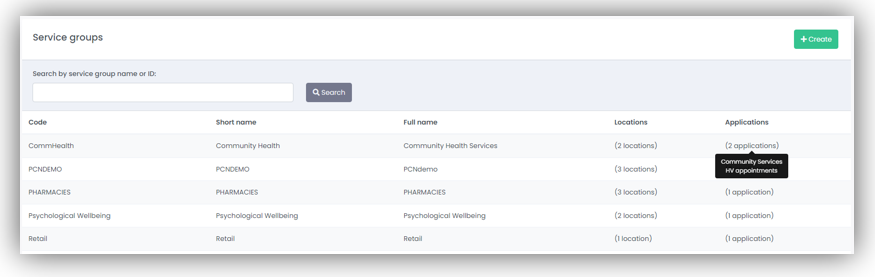
There are five fields in the Service group list, defined as follows:
- Code: This is the name used to define the Service group in the database.
- Short name: This is a shortened name of the Service group used when space is limited (maximum 45 characters).
- Full name: This is the full name of the Service group e.g., Weight Loss (maximum 145 characters).
- Locations: This displays the number of locations with this Service group. Hover over the number of locations to see location names.
- Applications: This displays the number of Services (Applications) associated with this Service group. Hover over the number of applications to see the service names.
To view more details about the Service group, select the line of specific interest. This takes you to the Service group details screen.
There are 2 tabs within the Service group details screen:
- The Settings tab gives a brief overview of details for a specific Service group, as well as a list of all locations which are configured under the Service group.
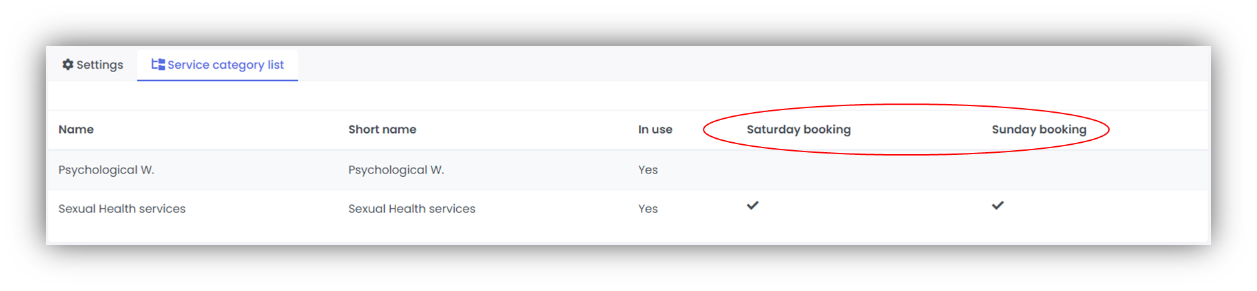
- The Service category list tab shows the information about sub-groups (Service categories) that group the detailed bookable services together.
What are Locations?
Locations contain the details of the place where services are offered, such as address, GPS coordinates, contact information, etc.
Each location has a location code, name, short name, and is assigned to a Service group.
What are Service Categories?
Service categories are Service group subsets that group the bookable services together. For instance, if the Service group is a sexual health Service group, sub-groups could be contraception services and sexual health services, those then diving into actual bookable services like IUD insert/removal for contraception and health check for the sexual health.
The Service category list tab controls the service categories (and their resources) associated with the Service group.
Each service category has a name and a short name.
The indicators as to whether Saturday booking or Sunday booking is allowed are used by legacy systems to help calculate the next available appointment slot to offer within a set time frame (e.g., the next 48 working hours).
How do I edit the Service Group details?
To edit the Service group details, press the
Edit button on the Service group details screen. As an Administrator, you can edit the Service group names and select which
service categories (sub-groups) are available for this Service group. After editing the details, remember to click on
Save.
To see the service category details, click anywhere on the row.
To see the service category details, click anywhere on the row.
How do I create a new Location?
From the Navigation Bar, select
System > Locations
to see all locations defined within mCB.
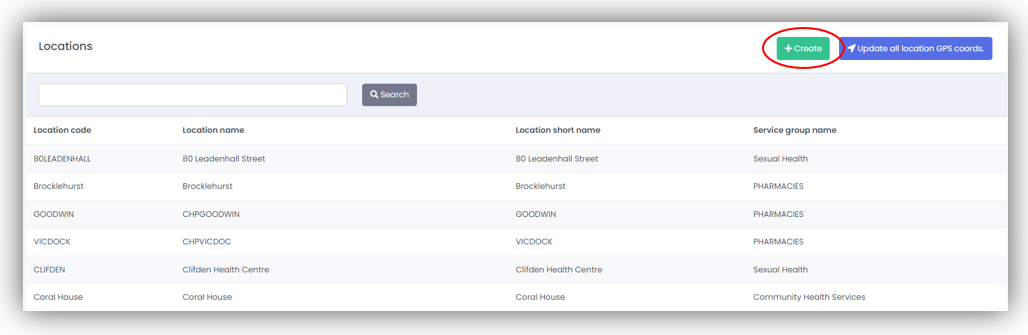
Select Create and complete the details on the Create new location screen:
- Full name: This is the full name of the Location (maximum 145 characters).
- Select the Service group (department) which this Location belongs to.
- Code: This is the name used to define the Location in the database.
- Short name: This is a shortened name of the Location used when space is limited (maximum 45 characters).
How do I find Location details?
From the Navigation Bar, select System > Locations to see all Locations defined within mCB.
If there are multiple locations, use the Search to find the location you require.
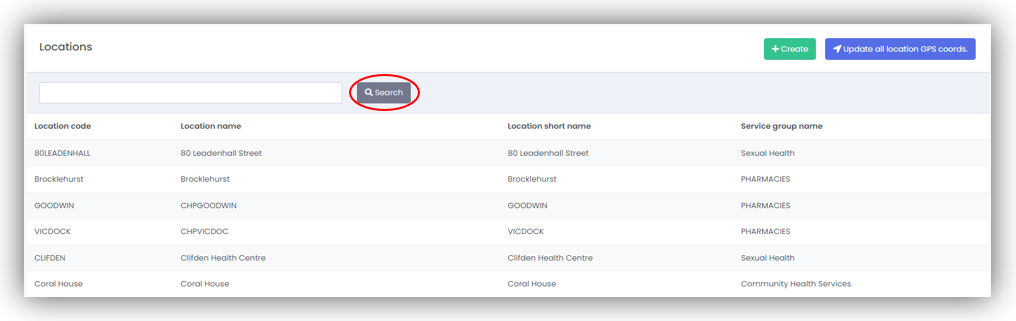
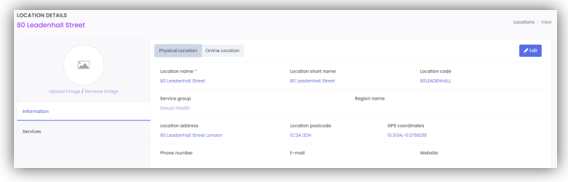
Selecting a location will take you to the Information tab on the Location details screen.
To see locations connected to a specific Unit, navigate to System > Units > Units and select the required Unit. The Locations section under the Settings tab lists all connected locations.
How do I edit Location details?
From the Navigation Bar, select
System > Units > Locations
and select the location to edit. This will take you to the Information tab on the Location details screen.
Select Edit, to make changes to all fields with the exception of the Created on and Modified on which are defined by the system.
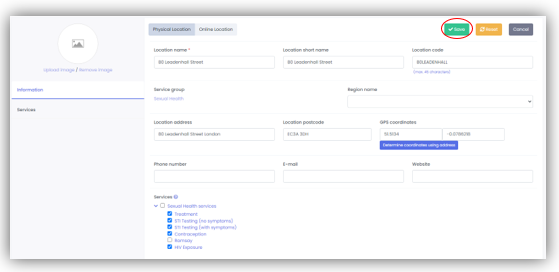
Once you have made your changes, select Save. A pop-up will confirm any updates.
How do I link Services to a Location?
From the Navigation Bar, select
System > Units > Locations
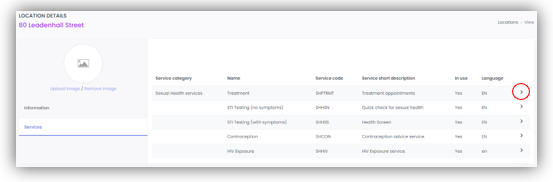
and select the location of interest. From the Location details screen, select the Services tab.
Select the arrow at the right-hand side, which will take you to the Service details screen.
From within the
Service details
screen, press
Edit
. You can then select which locations this service is linked to.
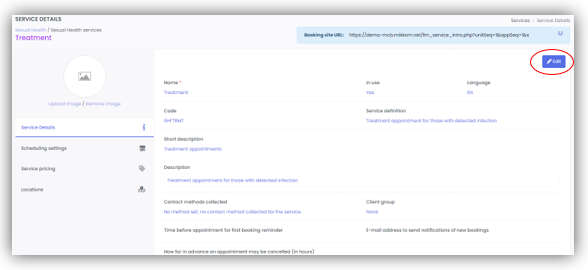
How do I view/edit a Service?
The
Service details
screen has multiple tabs, all of which contain data pertaining to the service, which can be modified at will, with the exception of
Created on
,
Modified on
,
Added on
, and
Language
data
which are set to the system default values. The tabs are
Service Details
(the main tab),
Scheduling settings
,
Service pricing
, and
Locations
.
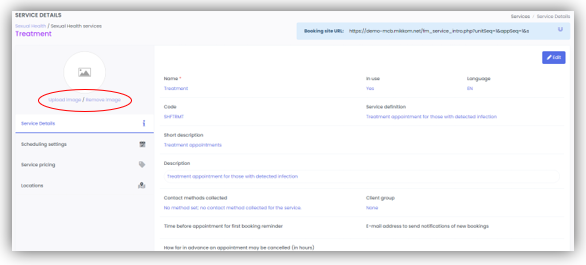
You can also easily upload or remove a service logo image using the
Upload image
and
Remove image
buttons respectively.
Service details
This screen displays important information about the service itself, such as the
Service name
,
Description
,
In use
status,
Contact
methods
, etc.
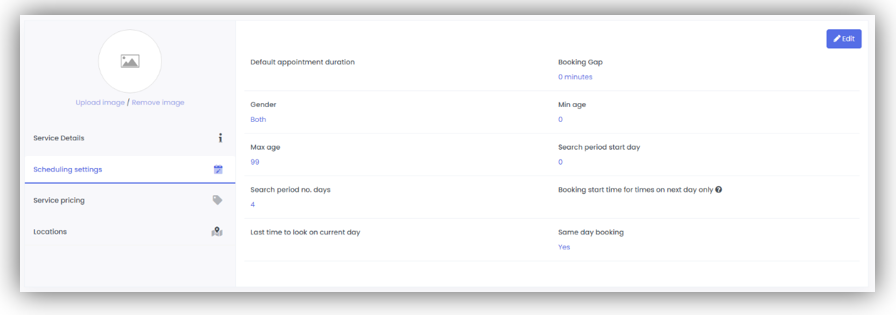
Scheduling settings
This shows data pertaining to the scheduling information of the service, such as
Default
appointment duration, which
Genders
the service caters to,
Min.
and
Max
.
age
range for patients, etc.
Service pricing
This tab contains the cost of the service to the patient (
Price
) and the
Currency
accepted for the service.
Locations
This tab displays the locations at which the service is offered.
What are Regions and how are they used?
Regions are a way of grouping together Locations on the patient booking site (e.g., grouping locations via County).
Navigate to
System > Units > Regions
to get to the Location region screen.
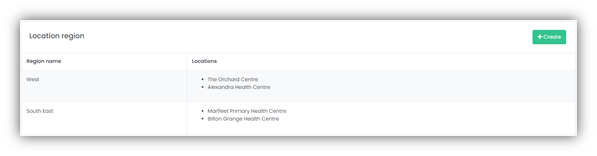
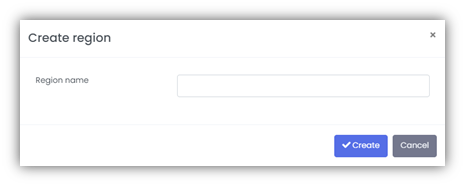
To create a new Region, select Create on the Location region screen and enter the Region name.
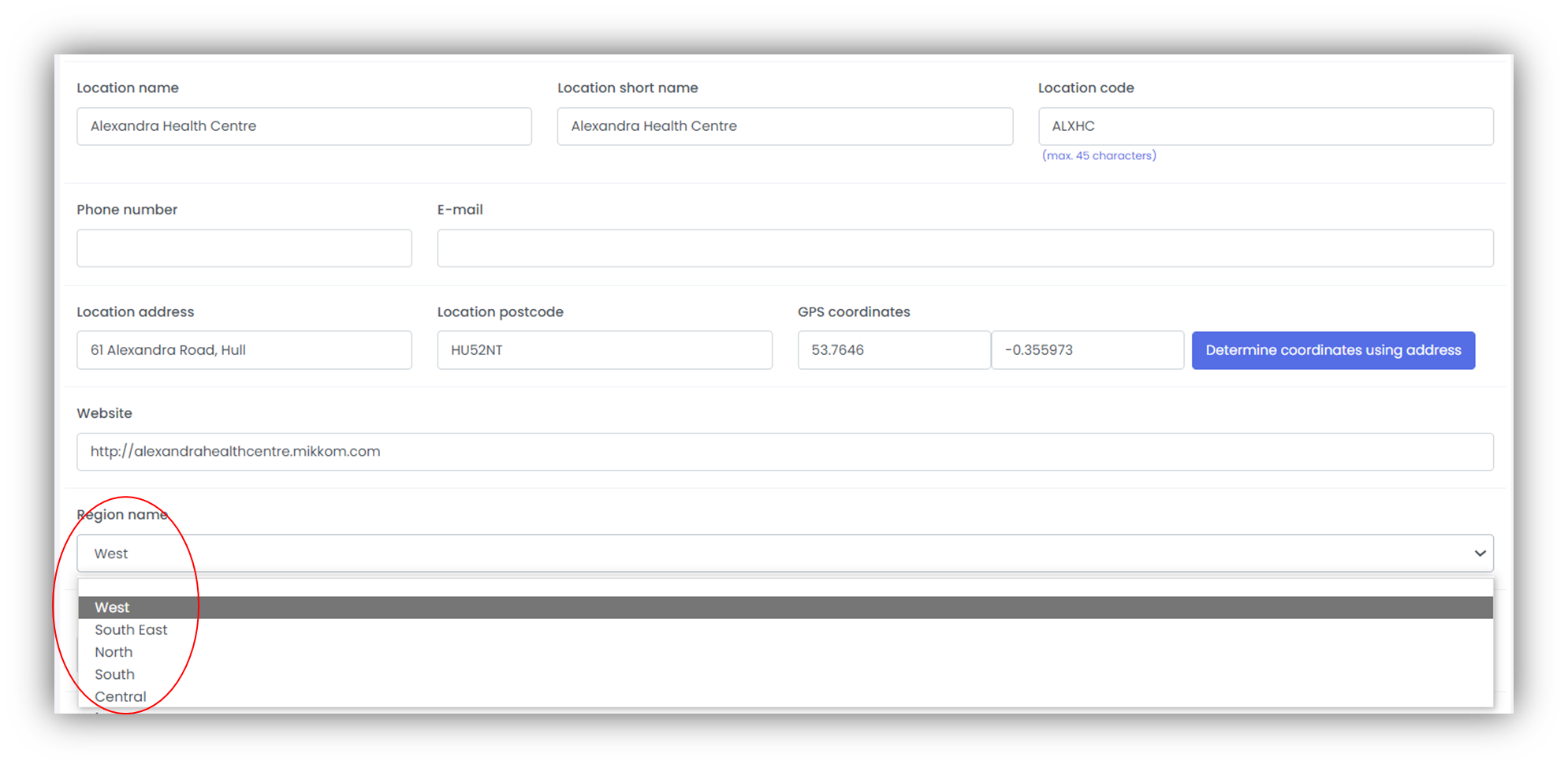
Once created, the Region will be available within the Region field within the Location details screen.
Setting a Service Price
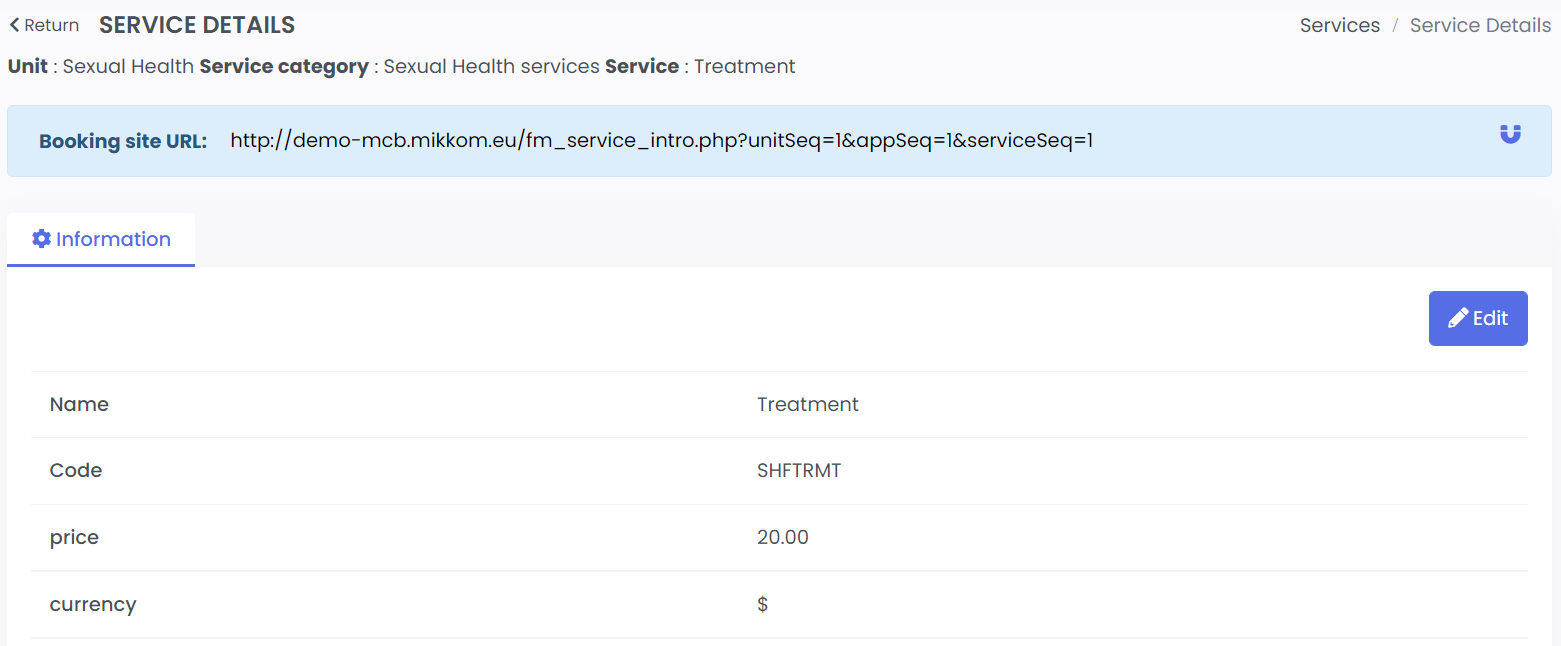
Navigate to the Service Details page and press Edit. From here you can set the cost and currency of the service.